


Most Microsoft 365 breaches are configuration, not vulnerability
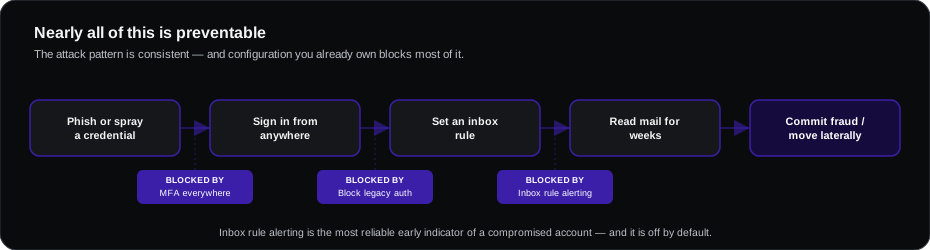
Microsoft 365 is a well-engineered platform that is regularly compromised — almost always because default settings are permissive and organisations never revisit them. The attack pattern is consistent: phish or spray a credential, sign in from anywhere, set an inbox rule, read mail for weeks, then commit fraud or move laterally.
Nearly all of that is preventable with configuration you already own.
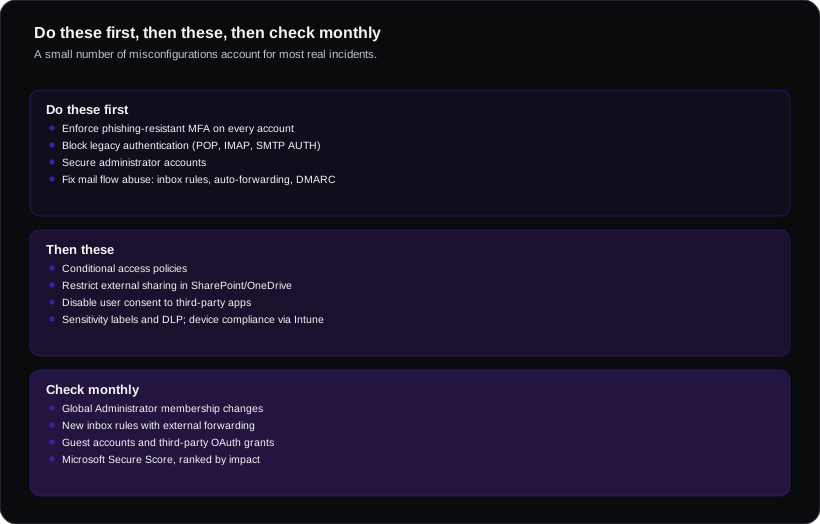
Do these first
1. Enforce phishing-resistant MFA on every account
Every account, including executives, service accounts where possible, and especially administrators. Prefer passkeys, FIDO2 keys or Authenticator with number matching. SMS is the weakest option and is phishable.
Security defaults provide a baseline; conditional access (Business Premium and above) gives proper control.
2. Block legacy authentication
Legacy protocols — POP, IMAP, SMTP AUTH, older Exchange protocols — cannot enforce MFA. Attackers actively target them precisely because they bypass it. Block them via conditional access, after checking for legitimate users such as multifunction printers and older line-of-business applications.
3. Secure administrator accounts
- Separate admin accounts from daily-use accounts
- No mailbox on admin accounts
- Global Administrator role assigned to as few people as realistically possible
- Privileged Identity Management for just-in-time elevation where licensed
4. Fix mail flow abuse
Business email compromise usually leaves the same fingerprints:
- Alert on inbox rule creation, particularly rules that forward externally or move mail to rarely-checked folders
- Disable external auto-forwarding by default
- Configure SPF, DKIM and DMARC properly — DMARC at enforcement, not just monitoring
- Enable anti-phishing policies including impersonation protection for your executives and domain
Inbox rule alerting deserves particular emphasis. It is the most reliable early indicator that an account is compromised, and it is off by default.
Then these
| Control | What it prevents |
|---|---|
| Conditional access policies | Sign-in from unmanaged devices, risky locations, legacy clients |
| Restrict external sharing in SharePoint/OneDrive | Anonymous links living forever |
| Disable user consent to third-party apps | OAuth consent phishing — a growing and under-monitored route |
| Configure retention and litigation hold | Data loss and inability to investigate |
| Enable unified audit logging | Being unable to reconstruct an incident |
| Sensitivity labels and DLP | Data leaving where it should not |
| Device compliance via Intune | Company data on unmanaged, unpatched machines |
| Guest access review | Long-forgotten external accounts retaining access |
The Copilot consideration
If you deploy Microsoft 365 Copilot, permission hygiene stops being theoretical. Copilot faithfully respects existing permissions — which means it will surface any document a user technically had access to but never would have found.
Organisations routinely discover, on the day Copilot arrives, that "everyone in the organisation" links have been quietly proliferating for years. Audit SharePoint and OneDrive sharing before deployment, not after the first awkward discovery.
What to check monthly
- Global Administrator membership — has anyone been added?
- New inbox rules with external forwarding
- Sign-in logs for impossible-travel and unfamiliar-location alerts
- Guest accounts, and remove stale ones
- Third-party OAuth app grants
- Secure Score, which gives a prioritised list specific to your tenant
Microsoft Secure Score is genuinely useful and under-used. It tells you exactly what is misconfigured in your own tenant, ranked by impact.
For businesses without an IT team
If you hold Microsoft 365 Business Premium, you already own most of what you need — the gap is almost always enablement rather than licensing. A realistic minimum:
- Turn on security defaults or basic conditional access
- Enforce MFA for everyone
- Block legacy authentication
- Disable external auto-forwarding
- Set up DMARC
- Review Secure Score and action the top five items
- Enable Intune for company devices
That is achievable in a day or two of focused work and removes the majority of realistic risk.
Frequently asked questions
Is Microsoft 365 secure out of the box?
It is secure by design and permissive by default. The platform is sound; the default configuration prioritises compatibility over security.
Do we need third-party security tools?
Frequently not, if you hold Business Premium or E5 and actually enable what is included. Many organisations pay twice for capability they already own.
What is the single most common gap?
Legacy authentication left enabled, closely followed by MFA not being enforced for every account. The two combine to make MFA effectively optional.